Connectors
Connect Endless to tools you already use, sign in with your own account, and see how workspace settings decide which connectors members can use.
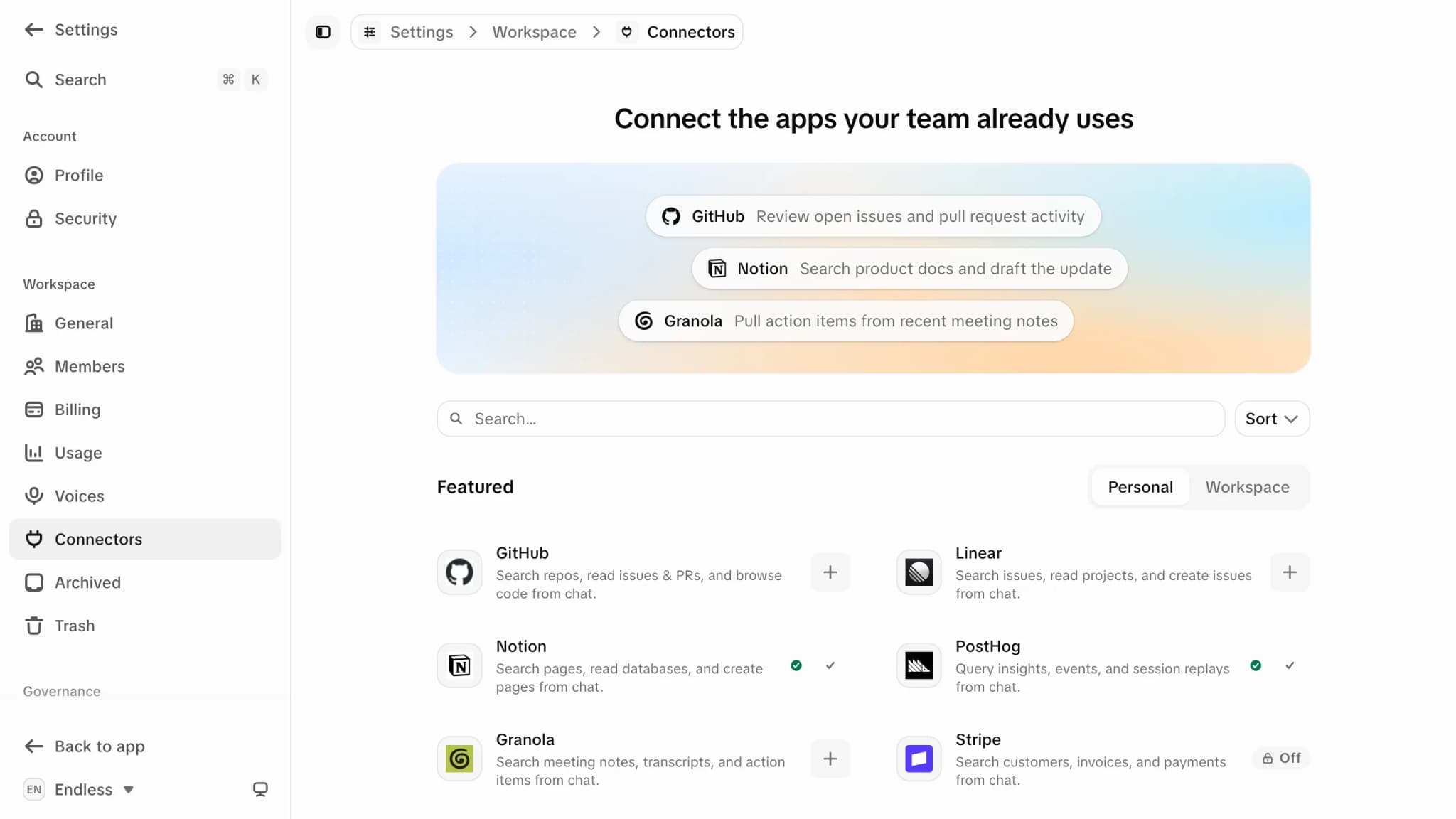
A connector gives Endless access to a tool you use, such as an issue tracker, notes app or CRM, so a chat can read from it and act in it. Connectors are in Settings → Connectors, and every member can open the page. For how connectors differ from skills, see skills and knowledge.
Connecting one
Find the tool
Search the catalog or sort by Featured or Name. New connectors appear without updates.
Press Connect
The + button on the card. Depending on the tool, you sign in with the provider in its own window, approve access on the tool's site, or, for public documentation servers, nothing.
Check it
A connected card shows a check and a health indicator: how many actions it offers, or "Not responding". Hover the check to turn it into ×, which disconnects.
| Card state | What to do |
|---|---|
| "Waiting on Slack" | Your Slack admin must approve Endless. Connect again after they do. |
| "Connection error" | The stored connection is unusable. Connect again. |
| "Reconnect" | The connector needs more permissions. Reconnect to grant them. |
| "Off" (locked) | The workspace turned it off. Only someone with governance access can change it. |
If connecting fails, the message says why. "This connector isn't set up on our side yet. Contact support." means retrying will not help.
A tool not in the catalog can only be added as a custom MCP server,
and only if it publishes a remote http or sse MCP URL. Desktop apps, browser extensions and
servers on your own computer cannot be added.
Two levels of control
- Workspace tab: turning a connector off removes it for everyone immediately, including people already connected. Only people with the governance permission to manage tools see this tab (admins by default). See roles and permissions.
- Personal tab: your own on/off choice among the connectors the workspace left on.
- Your sign-in: credentials are personal. Turning a connector on for the workspace connects nobody; each person signs in.
Unlike skills, connectors have no per-member setting in Members.
Adding a server of your own
Under "Custom MCP servers", "Add server" opens a form:
| Field | Value |
|---|---|
| Server label | A name, for example Granola |
| Server URL | The server's endpoint |
| Transport | http or sse, as the server documents |
| Authentication | Bearer token (stored encrypted) or OAuth (you sign in after adding it) |
"Add server" (or "Add and connect" for OAuth) adds a row you can Connect, Edit or Remove, with the same Personal and Workspace tabs.
Adding a server needs permission to create content (members and admins by default, not viewers). Editing or removing someone else's needs the permissions for other people's content. Add only servers you trust, and remove ones you no longer use.
Using connectors
- In chat: a connected connector's tools are available in every chat. Endless picks the right one.
- In scheduled tasks: only connectors you have connected are offered, and you can switch them off per schedule. Disconnecting one makes schedules that rely on it fail.
Related: skills, and Endless's own MCP server for using your workspace from Claude, ChatGPT, Cursor or VS Code.