Image
Generate an image in Endless: pick a model, write a prompt, add reference pictures, set the model's own controls and see the cost before you run it.
Image is a composer with a feed of your results above it. You set up one run (model, prompt, reference pictures, settings) and press "Generate". The composer keeps your settings, so for the next run you change only what should differ.
The Manual tab is this composer. The Agent tab sends your prompt to a new chat
with @image in it, where Endless picks the model.
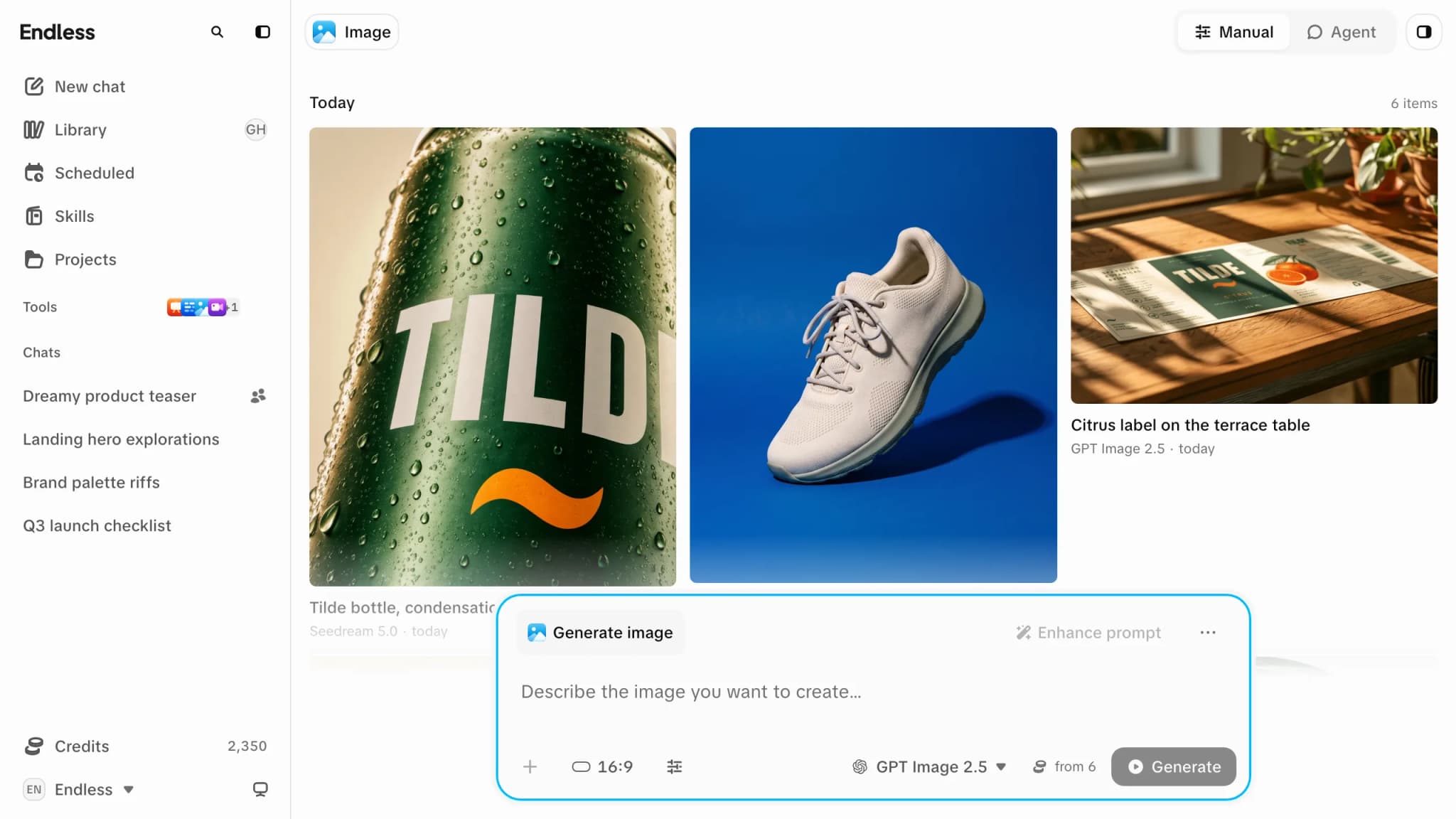
Generate an image
Write a prompt
Type in "Describe the image you want to create…", or pick one of the starting ideas to load its prompt.
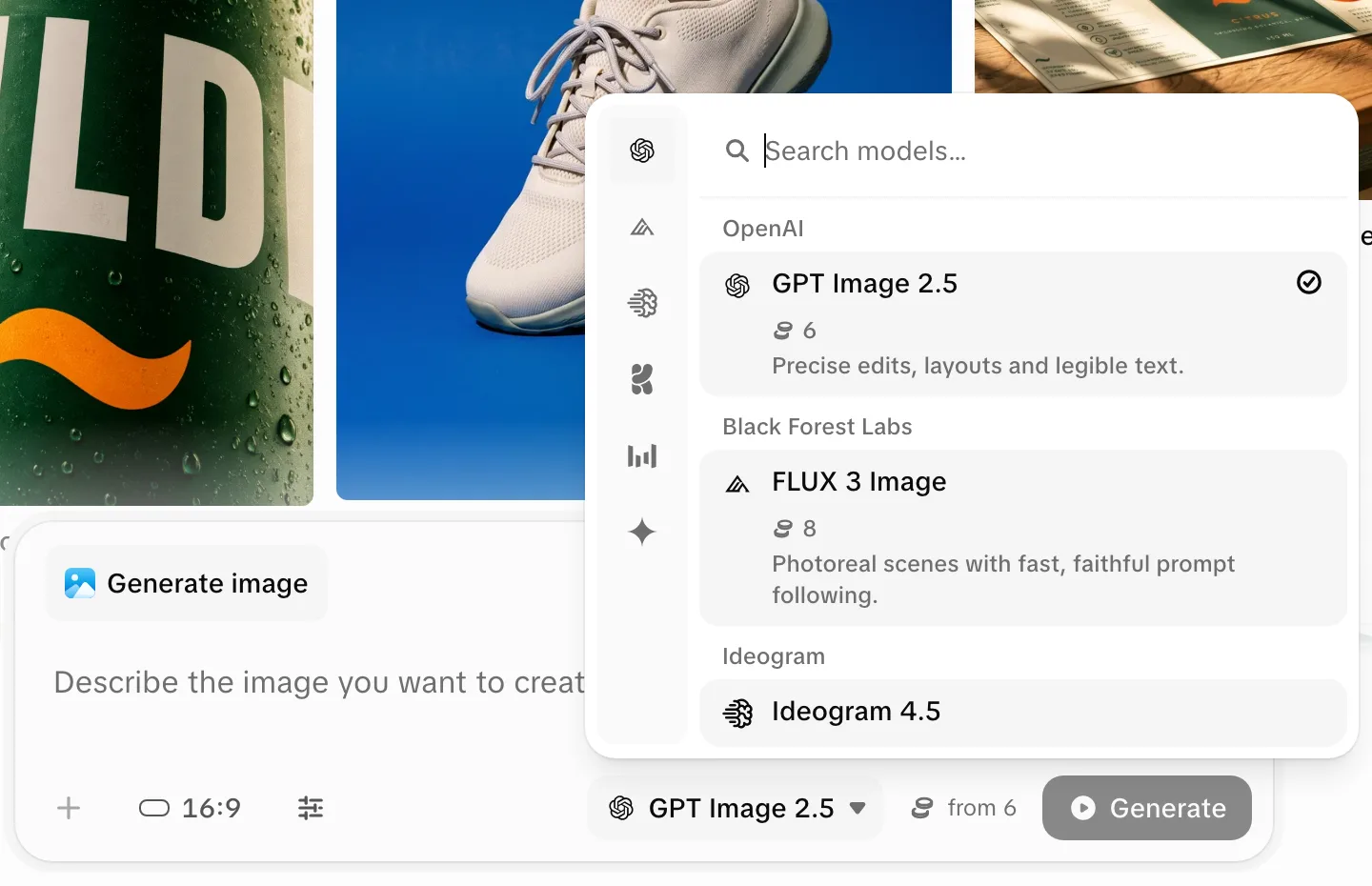
Choose a model
The model control is in the composer's footer. The list is grouped by provider, has a search box, and shows each model's price. The model decides every other control on the page. See Models.
Add references (optional)
"Add reference" opens your assets. You can also paste or drop a picture into the prompt field, or drag an earlier result from the feed onto the composer.
Set the output and parameters
"Output" sets shape and resolution (the chip reads e.g. 16:9 · 1080p). "Advanced parameters" shows the model's other settings; "Reset all" restores its defaults.
Check the estimate and generate
The number next to "Generate" is the expected cost. A placeholder appears in the feed at once.
"Enhance prompt" rewrites your prompt with more detail, using your reference images too. It costs no credits. "Restore original" brings your text back.
Controls depend on the model
Each model accepts different settings, and the composer shows only those. Switching model adds, removes or changes controls.
| What you see | Meaning |
|---|---|
| "This model doesn't take reference assets" on "Add reference" | The model accepts no references |
| "This model's references are already filled" | All reference slots are used |
| A slot marked "Required" (e.g. a base image) | "Generate" won't run until it's filled |
| "This model only uses the references, no prompt needed" | The prompt field is disabled |
| No "Advanced parameters" toggle | The model has no extra settings |
| "2 files didn't fit this model's inputs" | You picked more references than the model takes; the extras were dropped |
When a model isn't available
- Locked to a plan: shown dimmed with a lock and "Only available from the … plan". Choosing it opens billing; nothing runs or is charged.
- Turned off by the workspace: missing here, in chat and in
@mentions. With every model off, the control reads "No models available. Ask an admin to enable one in workspace settings." - Removed from the catalog: earlier results stay in your library, but "Regenerate" says "This model is no longer available".
Cost
The estimate uses the same rules as the charge, but it prices the outputs you asked for, and the charge prices the outputs that come back. Models without a fixed price show "from" a number in the list; the composer shows the real figure once your inputs are set. A failed run is not charged. If the workspace or your own limit can't cover a run, it is refused before it starts. See Credits and spending.
Reuse a result
- "Show library" opens your library beside the page. "Use as reference" (the + on a picture) or dragging a result onto the composer adds it as a reference.
- Open a result to see its prompt and model. "Regenerate" runs the same setup again; "Reuse parameters" (in its menu) loads the setup into the composer so you can change it first.
- The feed is a view of your library, not a separate store.
Cancelling a run
Open a running placeholder and choose "Cancel generation". If the provider hadn't started, nothing is charged. If it had, the run may finish anyway: it is charged and the result goes to the trash instead of the feed.