Quickstart
Create your Endless account, set up your workspace with your brand and social accounts, and generate your first image in about five minutes.
Create an account and a workspace, then generate your first image. Only the generation costs credits.
Create your account
Sign in with Google or Microsoft, or enter your email and paste the code Endless sends you.
Set up your workspace
If you were invited to a workspace, skip to generate your first image: setup runs once per workspace.
A new account gets a seven-step setup. The first step offers to read your website or social profile; choose Enter details manually (the second action under the field) to decide what Endless learns. Every field is optional and Continue always works.
- Brand: name, what you do, voice, audience. This shapes the tone of everything Endless writes.
- Social accounts: Instagram, X, TikTok, LinkedIn.
- Reference links: where Endless reads from.
- What to create first: adjusts your first suggestions.
- Workspace name and URL.
Send the starter prompt
Endless creates your first project with what you entered, then opens home with a starter prompt that mentions it, for example:
Give me 5 content ideas for Northsole this week. @northsoleNothing is sent until you send it, and sending costs credits.
Generate your first image
Open Image under Tools in the sidebar. Manual lets you choose the model and settings; Agent takes a description and chooses for you. In Manual, describe the image or select a preset card.
A matte black bottle on wet stone, backlit at dawn, cinematic haze, shallow depth of fieldBefore sending, check:
- The model. Models your plan doesn't include are dimmed and name the plan they need. See models.
- The cost badge next to the composer. It is the amount you are charged.
Add reference gives the model an image to start from; Advanced parameters opens the model's controls.
Start with an image, not a video: one video clip can cost more than a week's free credits.
Find it in the library
Open Library. Your image is first; filter by project, type, creator, date, source or model.
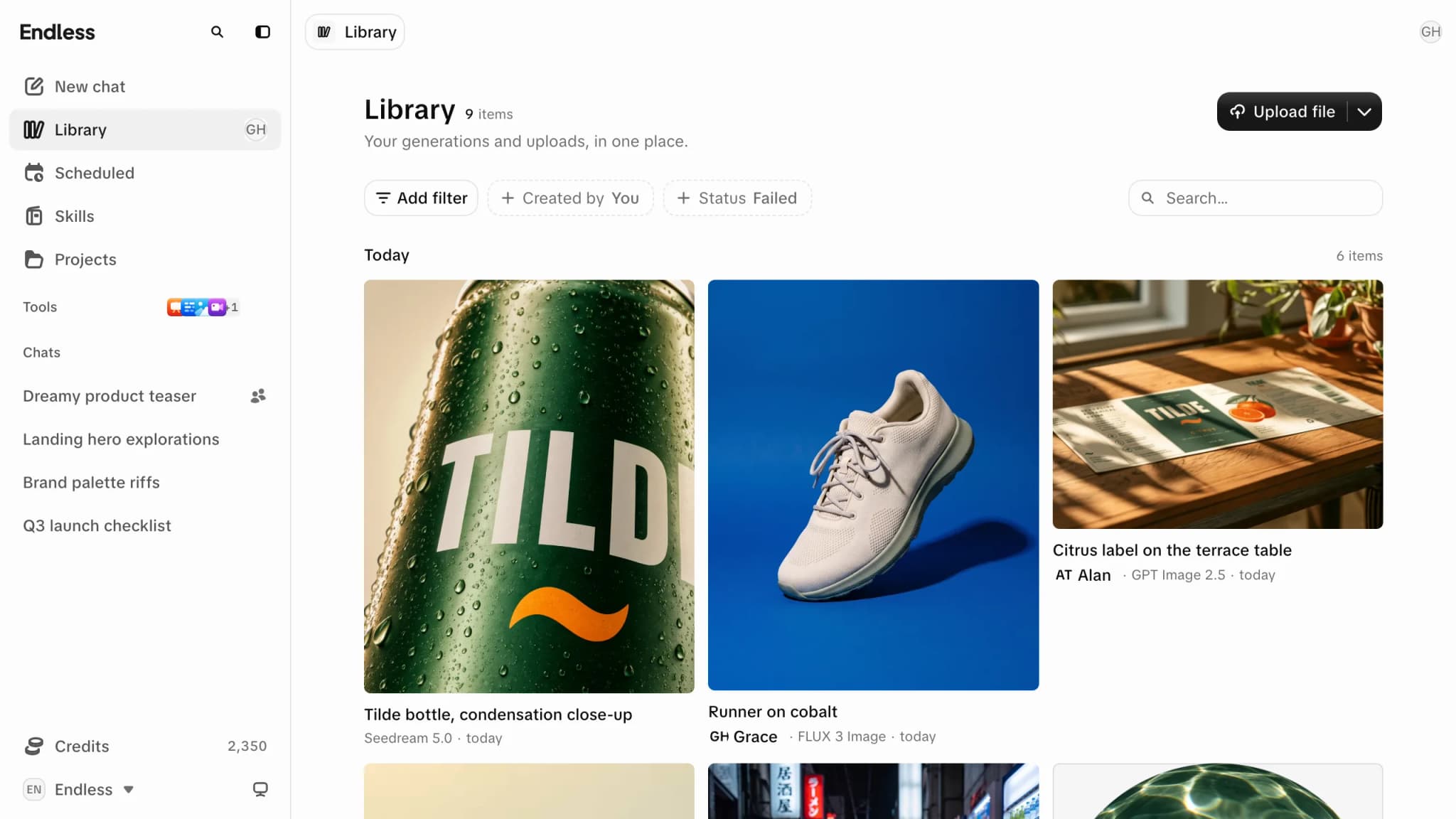
It is private to you, even from admins, until you share it. See assets and visibility.