Keyboard shortcuts Every keyboard shortcut Endless supports on Mac and Windows, grouped by where it works: the composer, chats, assets, transcripts, canvases and skills.
Every shortcut in Endless, grouped by where it works. Press ? anywhere to see the four global ones in the app.
⌘ and Ctrl are interchangeable everywhere except saving a skill file (⌘S on a Mac, Ctrl+S elsewhere). Tables show the Mac form. Shortcuts for a tool that is switched off for you don't work.
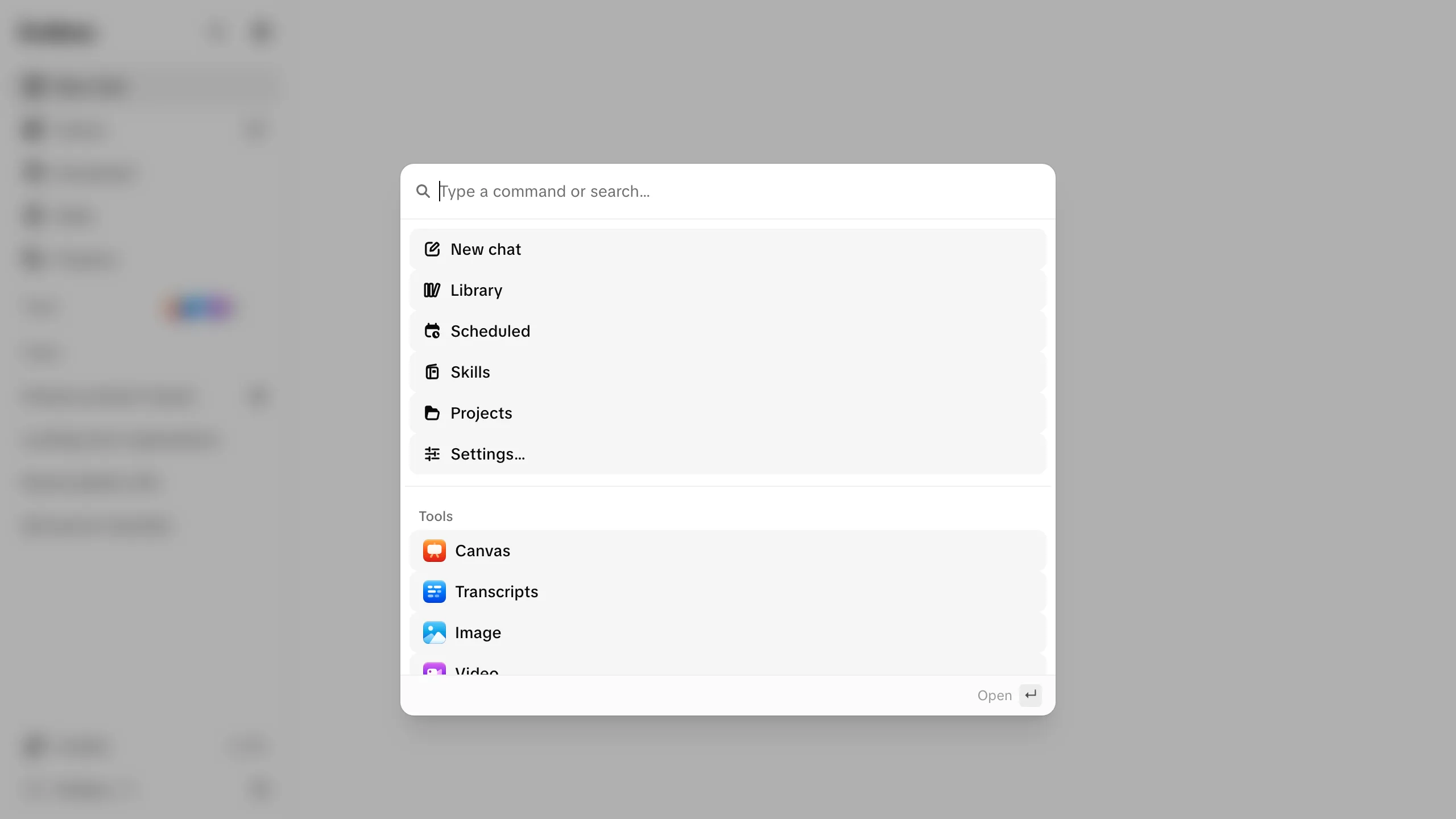
Keys What it does ⌘K Open the command palette to search and go to any page ⌘, Go to your settings ⌘B Show or hide the left sidebar (workspace and settings) ? Show or hide the keyboard shortcuts dialog (not while typing)
Applies on the workspace home, in a chat, on the Image and Video pages, in a canvas's generate bar and in Social radar .
Keys What it does Enter Send Shift+Enter Line break @Open the mention menu /Open the skills menu ↑ ↓ Move through an open mention or skill menu Enter or Tab Take the highlighted item Esc Close the menu or the attachment picker
With nothing else focused, typing a letter puts the cursor in the composer and keeps the letter. Space still scrolls or presses the focused button.
On a phone or tablet, Enter is a line break; use the send button.
While dictating , Enter stops and keeps the words, Esc discards the recording.
Keys What it does ⌘Enter Save a message you're editing Esc Cancel that edit ⌘J Show or hide the document panel (only when the chat has a document or artifact)
Keys What it does ⌘Enter Submit the form (also from the invite dialog's email field) Esc Close the dialog
On a schedule's form , the first ⌘Enter opens the review and the second saves. Plain Enter never advances it.
Keys What it does ← / ↑ Previous item → / ↓ Next item Esc Close the preview, or collapse an expanded stack in the library
Keys What it does ⌘F Search the transcript (replaces the browser's find bar) Enter Next match Shift+Enter Previous match Esc Close the search Space Play or pause ← / → Back or forward ten seconds
Space, ← and → are ignored while you're typing in a field or have a button focused.
Keys What it does ⌘G Show or hide the right panel (Assets, Info and other tabs) ⌘I Show or hide Info for the selection , Open cursor chat with others on the board
For drawing shortcuts (tools, undo, zoom, grouping), right-click the board: the menu shows each one.
Keys What it does ⌘S / Ctrl+S Save the file (platform-specific) Esc Leave editing (does nothing if there are unsaved changes)
On the chat document panel and the asset preview, tab to the drag handle, then:
Keys What it does ← / → Move the handle Shift+← / → Move it faster Home / End Move it to either end