Members
How to invite people into a workspace, set what they can do and spend, and take them out again.
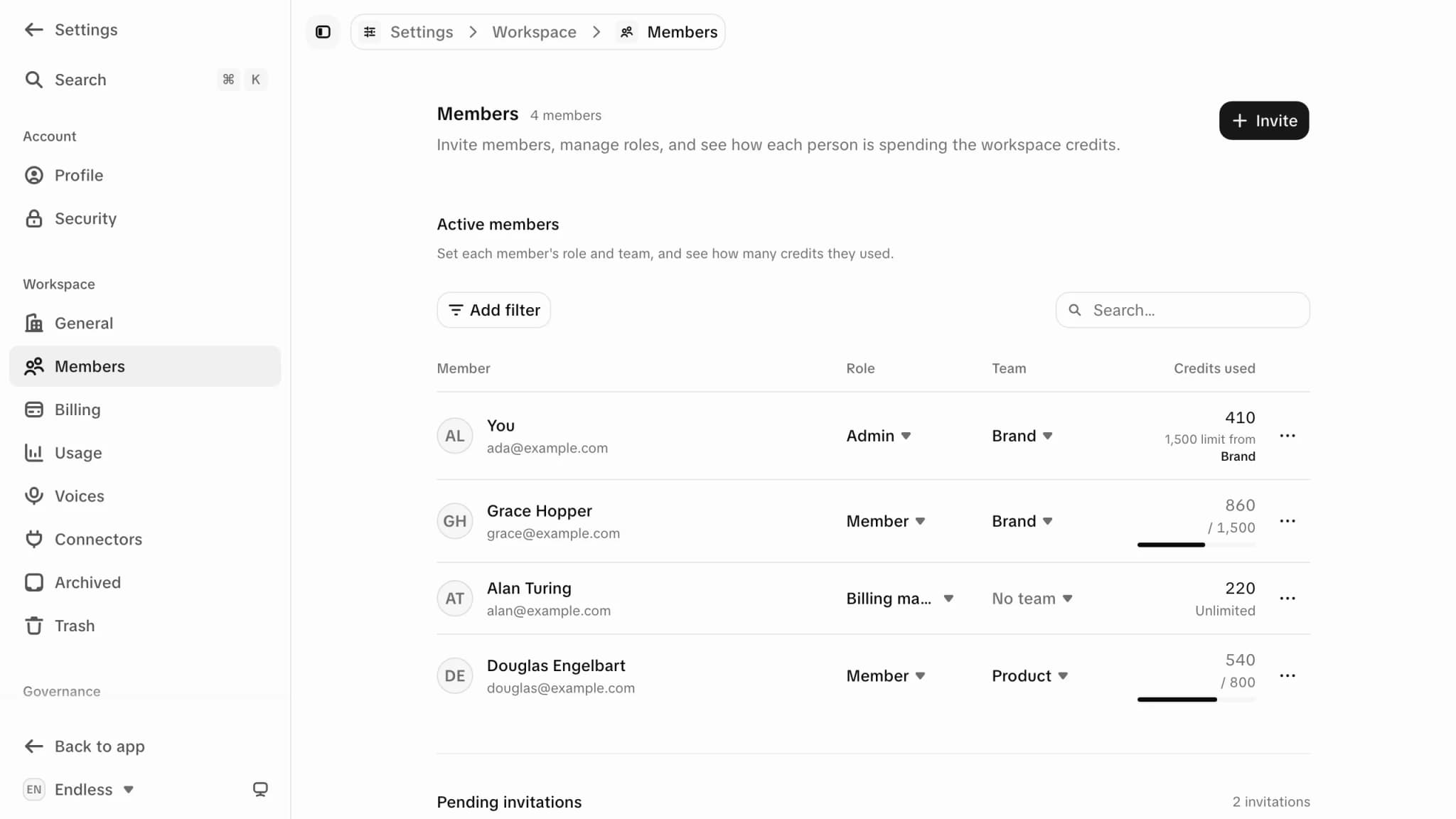
Settings → Workspace → Members is where the workspace's roster is administered: "Invite members, manage roles, and see how each person is spending the workspace credits."
Workspaces and members explains why this page and the read-only Members directory are two different things, and how the permissions split. This page is the how-to.

Everyone in the workspace can open this page, and everyone sees the same roster — each person's name, email, role badge, and the credits they've used this cycle against their limit. What your role changes is the controls, and they're hidden rather than refused: if you don't hold the permission, the button simply isn't there.
Inviting someone
Press "Invite"
Top right of the page. The dialog is headed "Invite members", and tells you what will happen: "Each person gets an email with a link to join your workspace."
Sending invitations needs the "Invite and remove members" permission — an admin, by default. Without it there is no Invite button at all.
Add the email addresses
"Email addresses" takes as many as you like, one chip per address. Anything that isn't a valid address is flagged before you can send.
Set the role, team and limit
Three controls under the field, and "Applies to everyone you invite." — they apply to the whole batch, so invite people with different roles in separate batches.
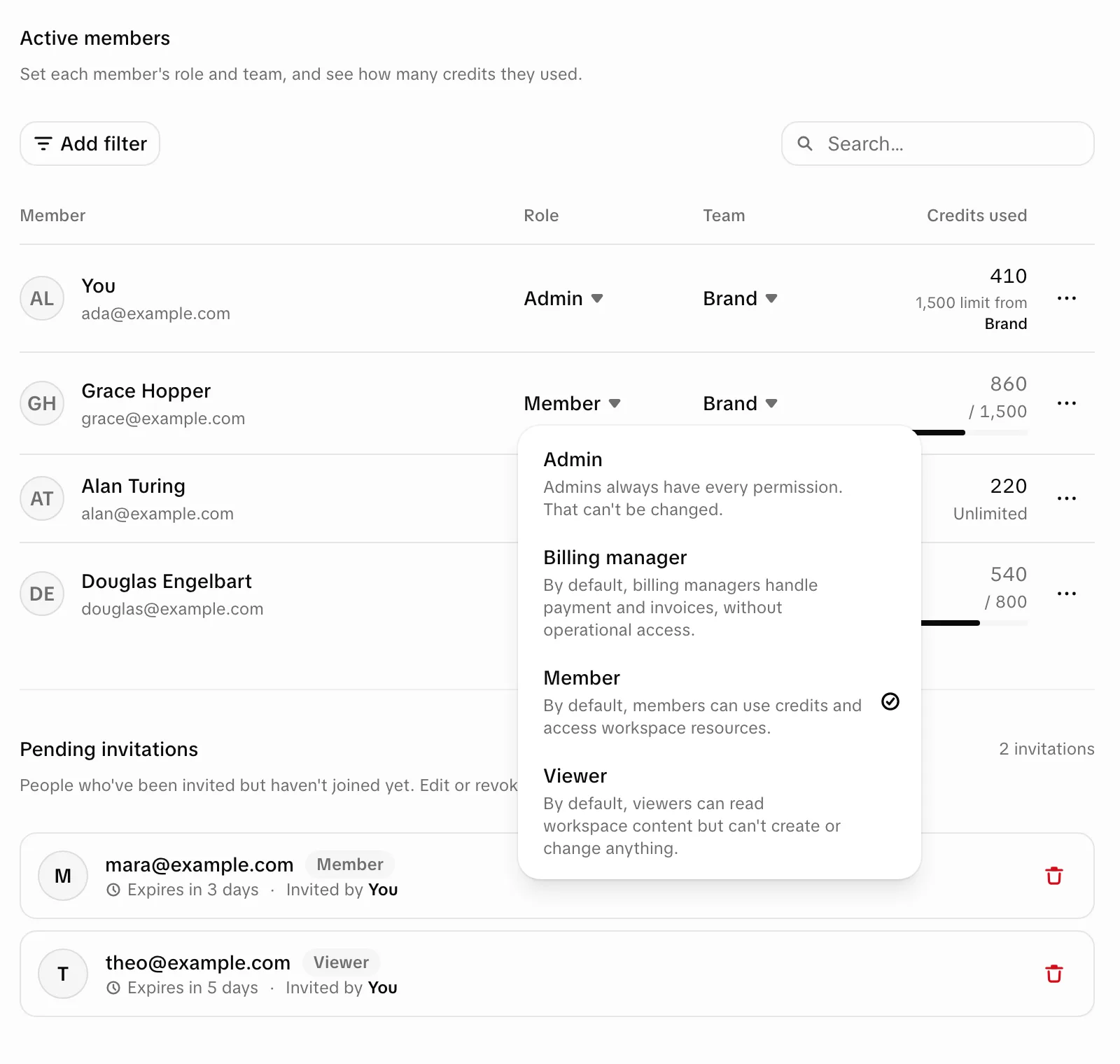
- Role — the role each invitee gets on arrival. The picker offers only the roles you can assign yourself, so only an admin can invite someone straight in as an admin.
- Team — optionally drop them into a team on arrival. "No team" is the default and is also how you clear the choice.
- Limit — an optional personal spending cap: "Cap monthly credit usage per person. Leave empty to use the workspace pool."
Send
"Send invites". Endless reports per address, so one bad entry doesn't sink the batch — the addresses that went through disappear from the field and the ones that failed stay behind with the reason attached.
Why an invite gets refused
- The address already has a pending invitation. The fix is offered inline as "Revoke and re-invite".
- The person is already in this workspace.
- "You can't invite yourself".
- "Workspace seat limit reached. Upgrade your plan to invite more people."
Seats
The header counts your members against the plan's seat cap when there is one. At the cap the Invite button is still visible but locked, with the tooltip "Seat limit reached. Upgrade in Billing."
Pending invitations occupy seats. Someone who was invited and hasn't accepted counts exactly like a member for the cap. If you're one seat short and an old invitation is sitting unanswered, revoke it and the seat comes back.
Pending invitations
Once at least one invitation is outstanding, a "Pending invitations" section appears below the roster: "People who've been invited but haven't joined yet. Edit or revoke an invite anytime."
Each row shows who was invited, the role they'll get, who invited them, and how long the invitation has left — "Expires in…" while it's live, and a plain "Expired" badge once it isn't. From the row you can change the team and the spending limit before they arrive, or revoke the invitation entirely (it asks you to confirm).
There is no "resend". If the email got lost, or the invitation expired, the way to send a fresh one is to revoke it and invite the same address again — which mints a new link with a new expiry. That is also what the product suggests when you try to re-invite an address that already has an invitation pending.
Changing a member
Open the row's "More options" menu and choose "Edit" to get the "Member settings" sheet — "Configure role and spending limit for this member." It shows only the fields you have the permission for, so two different admins-in-part see two different sheets.
Role
Needs "Manage roles and permissions". The picker offers only roles you could assign yourself, and disappears entirely on a member whose role you can't change at all. Each option carries its own hint — for admin: "Admins always have every permission — that can't be changed."
Spending limit per billing cycle
Needs "Invite and remove members". "Maximum credits this member can use per billing cycle. Leave empty for unlimited." If the member's team already caps them, emptying the field hands them back to the team's cap rather than to unlimited, and the note under the field says so.
The sheet sends only what you actually changed. That is deliberate: each field is checked against its own permission, so someone who can set spending limits but not roles can still save a limit without tripping over the role field.
Roles themselves aren't editable
You choose which role a person holds; you don't redefine what a role means. The four roles — Admin, Member, Billing manager, Viewer — behave the same in every workspace. What each one carries is in Roles and permissions.
Teams
A team can be set when you invite someone. For people already in the workspace, team membership is managed in Settings → Governance → Teams, which needs the permission to change workspace settings — a different permission from the one that assigns them.
Removing someone
One person
Row menu → "Remove". Needs "Invite and remove members".
Several at once
Tick the checkboxes on the rows and use "Remove from workspace" in the bar that appears. Endless reports how many went and how many didn't.
Yourself
Your own row offers "Leave" instead of Remove, at any role — it opens the same dialog as Leave workspace.
Two refusals to expect:
- "Can't remove the last admin" — "Promote another member to admin first." A workspace always keeps at least one admin.
- "Can't remove yourself" — "Leave the workspace from workspace settings instead."
Removing someone takes away their access, not their work. What they made stays in the workspace, and their account is untouched — they can be invited back.
What your role lets you do here
| Action | Permission needed | Who has it by default |
|---|---|---|
| Open the page, read the roster and the spend | none | everyone |
| Invite someone, and revoke an invitation | Invite and remove members | Admin |
| Set a personal spending limit | Invite and remove members | Admin |
| Add someone to a team | Invite and remove members | Admin |
| Change someone's role | Manage roles and permissions | Admin |
| Remove someone from the workspace | Invite and remove members | Admin |
| Leave the workspace yourself | none | everyone |
Find a person
The read-only member directory and what a person's profile shows.
Spending limits in context
How a personal limit, a team limit and the workspace pool interact.
More seats
Where the plan — and therefore the seat cap — is changed.
Roles and permissions
Every permission behind every control on this page.