AI photo editor
Pick a photo, then describe what to change. After you sign in, attach the photo in your workspace chat and the agent edits it with an image model like Nano Banana, GPT Image or FLUX, keeping the rest of the picture the same.
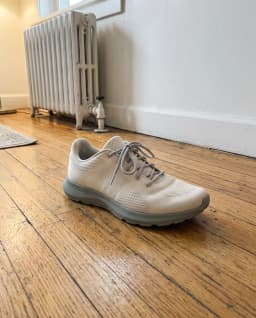
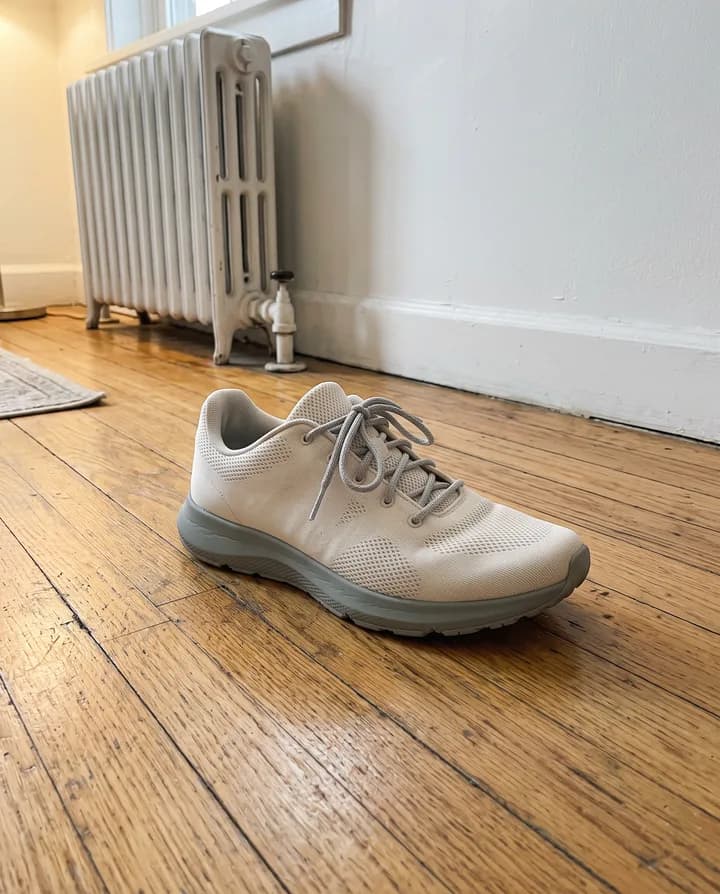
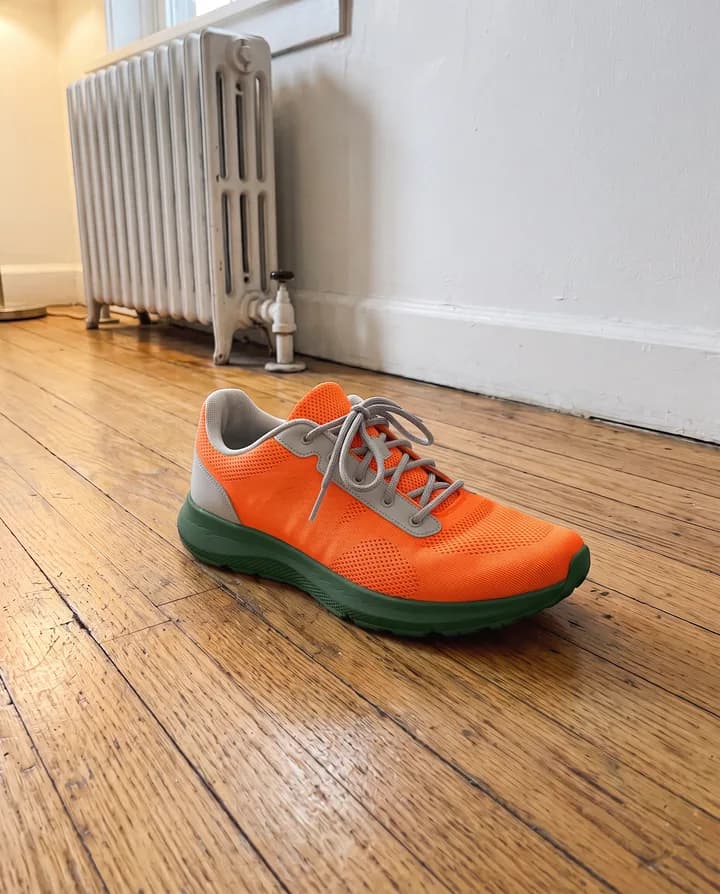
What is an AI photo editor?
An AI photo editor changes a photo from a written description instead of brushes and layers. You write what you want, such as remove the person in the back, make the jacket red or turn it into a watercolor, and an image model makes the edit. A good edit changes only what you asked for and keeps the rest of the photo as it was.
People use it for edits that would take a long time in a traditional editor: removing objects, swapping colors, adding props, changing the season or the light, and trying different styles. It is useful for product photos, social posts, ads and personal photos.
Endless has several image models that edit an attached photo, including Nano Banana, GPT Image and FLUX, in one workspace. You attach the photo in the chat, describe the change and the agent picks a model and runs it. Each edit is saved as a new asset, so the original stays untouched and you can compare versions.
How it works
- 01
Pick your photo
Drop or choose the photo you want to edit in the box above.
- 02
Sign in and attach it again
Create a free Endless account or sign in. Your workspace chat opens with the prompt already written. The file stays on this page, so attach the photo again in the chat and send.
- 03
Describe the change
Tell the agent what to change and what to keep. It edits the photo with an image model and saves the result in your workspace assets. Ask for the next change in the same chat.
What people use it for
- 01
Remove objects and people
Take out a passer-by, a cable, a sign or clutter on a table. Say what to remove and that everything else should stay the same, and the model fills in the space behind it.
- 02
Change colors
Try a product, a wall, a car or an outfit in another color without a new shoot. Name the object and the color you want, and keep the rest of the photo as it is.
- 03
Add elements
Add a prop to a product shot, a plant to a room or a sign to a storefront. Describe what to add and where it goes in the picture.
- 04
Change the style
Turn a photo into a watercolor, a pencil sketch, a 3D render or a film look. The composition stays the same while the style changes.
- 05
Change the light or season
Make a daytime photo look like sunset, add snow to a summer street or soften harsh light. It is a quick way to make seasonal versions of the same image.
- 06
Edit step by step
Make one change, look at the result, then ask for the next one in the same chat. Each version is saved as an asset, so you can go back to any of them.
Frequently asked questions
Is the AI photo editor free?
You can start free. A free Endless account comes with the Free plan, which gives your workspace 100 credits when you create it and 50 credits every week. Each edit spends credits from that balance. Paid plans add more credits if you edit often.
How much does an edit cost?
Each edit spends credits, and the cost depends on the model and settings such as the output resolution. You can ask the agent for the cost before it runs, so you know what it will spend from your workspace balance.
Which AI models can edit my photo?
Endless includes image models that take an input image, such as Nano Banana, GPT Image, FLUX, Seedream and Ideogram. If you are not sure which to use, describe the edit and the agent picks one. You can also ask for a specific model by name.
Will it change parts of the photo I did not ask about?
The agent asks the model to change only what you named and to keep the rest. Models repaint the image, so small differences can appear. Say clearly what must stay the same, make one change at a time and compare the result with the original.
Can I crop, resize or convert the photo?
Yes. For exact changes like cropping, resizing, rotating or converting the format, the agent edits the file directly instead of running an image model.
Is my original photo kept?
Yes. Every edit is saved as a new asset in your workspace, and the photo you attached stays as it was. You can compare versions or continue from any of them.
Who owns the photos I edit?
Photos you attach and the edits made from them are saved in your workspace as assets, private by default, and you decide who to share them with. Use photos you have the rights to, and check the terms of the model you use for any commercial use limits.
Related tools
Change image background
Replace the background of a photo with a new scene you describe.
Open the tool: Change image backgroundImage upscaler
Upscale an image 2x, 3x or 4x with AI and sharpen its detail.
Open the tool: Image upscalerImage to video
Animate a still image into a short AI video. Describe the motion and pick a video model.
Open the tool: Image to video
Give your next idea a place to grow.
Start free, create a project, and bring your brand’s references together. Or book a demo to explore Endless with your team.