Change image background with AI
Pick a photo, then describe the new scene. After you sign in, attach the photo in your workspace chat and the agent replaces the background with an AI image model, keeping the subject as it is.
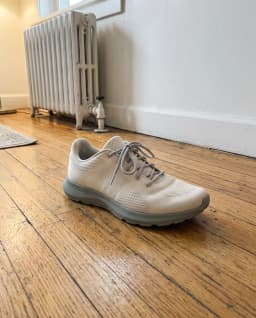
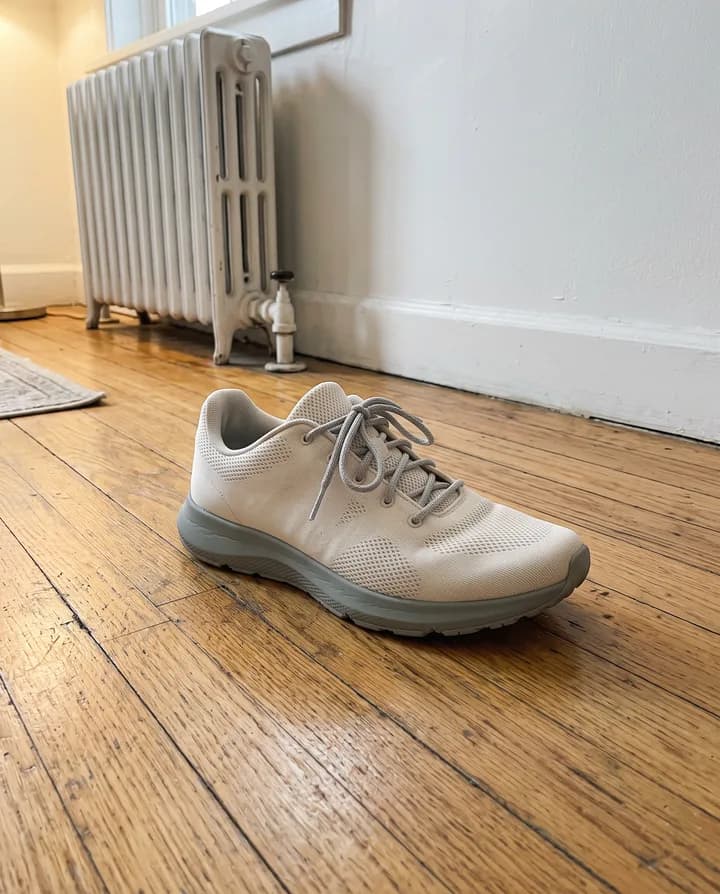
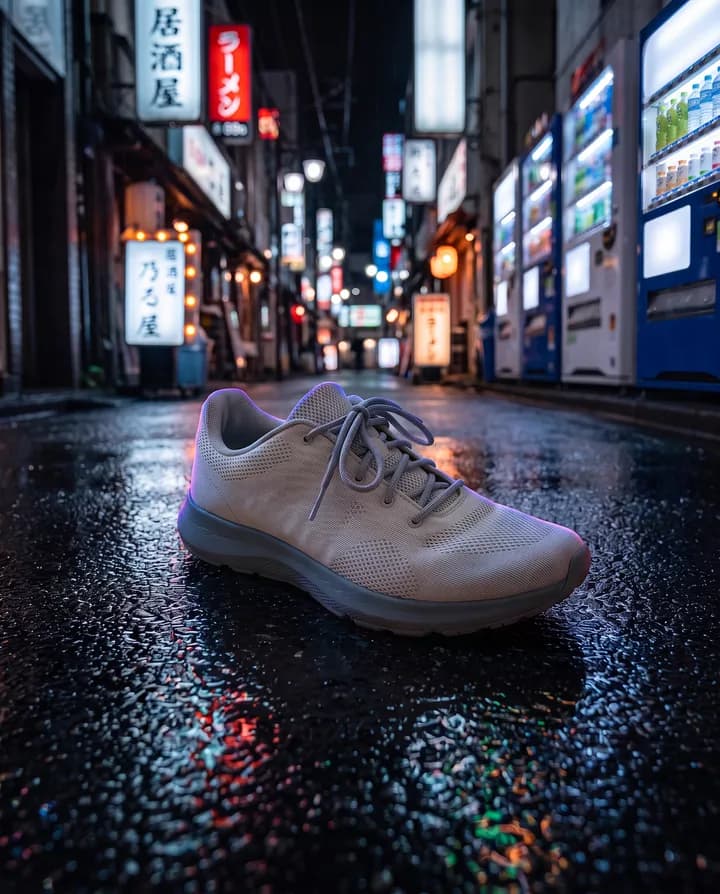
What does it mean to change an image background?
Changing an image background means keeping the subject of a photo, such as a person, a product or a pet, and putting a different scene behind it. Instead of a transparent cut-out, you get a finished image: the subject in a studio, an office, a beach or any place you describe, with light that fits the new scene.
People change backgrounds to fix a messy room in a portrait, to show a product in a better setting, to make a set of photos look consistent or to adapt one photo to different campaigns. It saves a reshoot when the subject is right but the place is not.
Endless does this with image models that edit an attached photo, such as Nano Banana, GPT Image and FLUX. You attach the photo, describe the scene and the agent runs the model, asking it to change only the background. The result is saved as a new asset, and your original stays as it was.
How it works
- 01
Pick your photo
Drop or choose the photo in the box above. A subject that is sharp and clearly visible gives the best result.
- 02
Sign in and attach it again
Create a free Endless account or sign in. Your workspace chat opens with the prompt already written. The file stays on this page, so attach the photo again in the chat and send.
- 03
Describe the new scene
Tell the agent where the subject should be. It replaces the background with an image model and saves the result in your workspace assets. Ask for another scene in the same chat.
What people use it for
- 01
Professional portraits
Replace a living room or a car seat behind you with a clean office, a plain studio backdrop or a soft outdoor scene for a profile photo, a team page or a speaker bio.
- 02
Products in new settings
Move a product from the table where you photographed it to a kitchen, a shop shelf or a beach. The product stays the same and the scene changes around it.
- 03
Consistent photo sets
Give a set of team photos or product shots the same background, so they look like they were taken together even when they were not.
- 04
Campaign versions
Put the same subject in a winter scene, a summer scene and a city scene for different campaigns or markets, without reshooting.
- 05
Social posts and thumbnails
Place yourself or a product in front of a scene that fits the post, such as a stage, a skyline or a branded color, for thumbnails and stories.
- 06
Fix distracting backgrounds
Swap a busy street, a crowd or clutter for a calm scene so the subject stands out. Describe the mood and the light you want.
Frequently asked questions
Can I change an image background for free?
You can start free. A free Endless account comes with the Free plan, which gives your workspace 100 credits when you create it and 50 credits every week. Each edit spends credits from that balance. Paid plans add more credits if you edit often.
How much does it cost?
Each edit spends credits, and the cost depends on the model and settings such as the output resolution. You can ask the agent for the cost before it runs, so you know what it will spend from your workspace balance.
How is this different from removing the background?
Removing the background gives you the subject on a transparent PNG, with nothing behind it. Changing the background gives you a finished image with a new scene behind the subject. If you need the transparent cut-out, use the Remove background tool.
Will the subject stay the same?
The agent asks the model to change only the background and keep the subject exactly as it is. Models repaint the image, so small differences can appear, especially in faces and text. Compare the result with the original and ask for a new version if something changed.
Which AI models are used?
Endless includes image models that take an input image, such as Nano Banana, GPT Image, FLUX and Seedream. The agent picks one that fits the scene, or you can ask for a specific model by name.
Can I try several backgrounds?
Yes. Ask for several scenes and the agent generates up to 4 versions at a time. Each version is saved in your workspace assets and spends credits.
Are my photos private?
Photos you attach and the results made from them are saved in your workspace as assets, private by default, and you decide who to share them with. Use photos you have the rights to.
Related tools
Remove background
Cut the subject out of a photo onto a transparent background, saved as a PNG.
Open the tool: Remove backgroundAI photo editor
Edit a photo by describing the change: remove an object, change a color, add something or restyle it.
Open the tool: AI photo editorAI product photo generator
Turn one product photo into studio and lifestyle shots for your store and ads.
Open the tool: AI product photo generator
Give your next idea a place to grow.
Start free, create a project, and bring your brand’s references together. Or book a demo to explore Endless with your team.