Restore old photos with AI
Pick a scan of an old photo and Endless repairs the damage: scratches, tears, creases, dust spots, stains and faded contrast. After you sign in, attach the scan in your workspace chat, an image model repairs it and the Enhance image model sharpens the result.
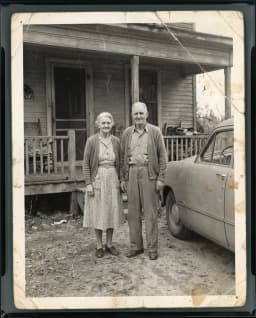
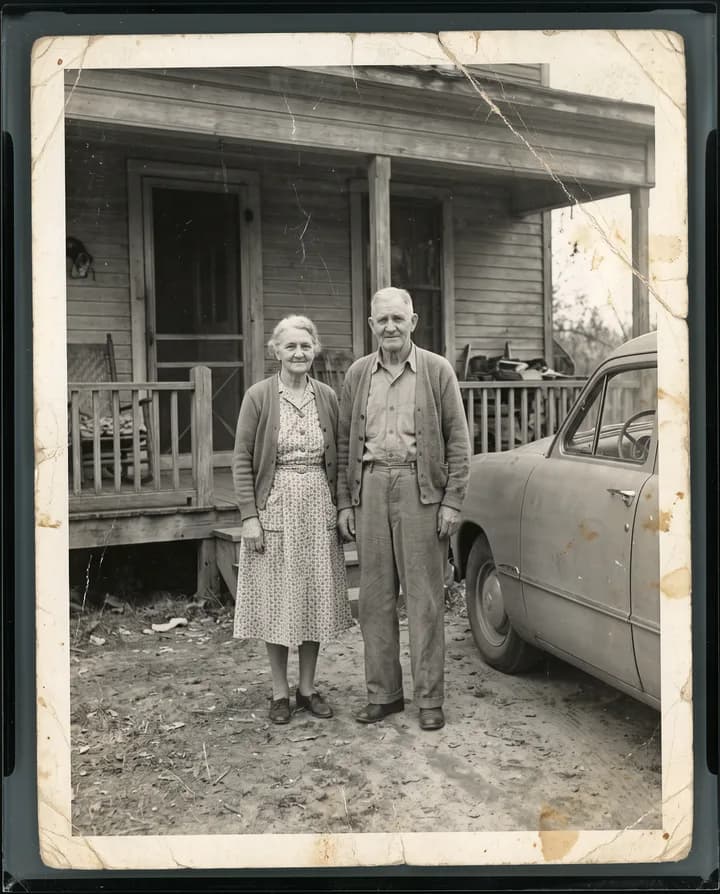
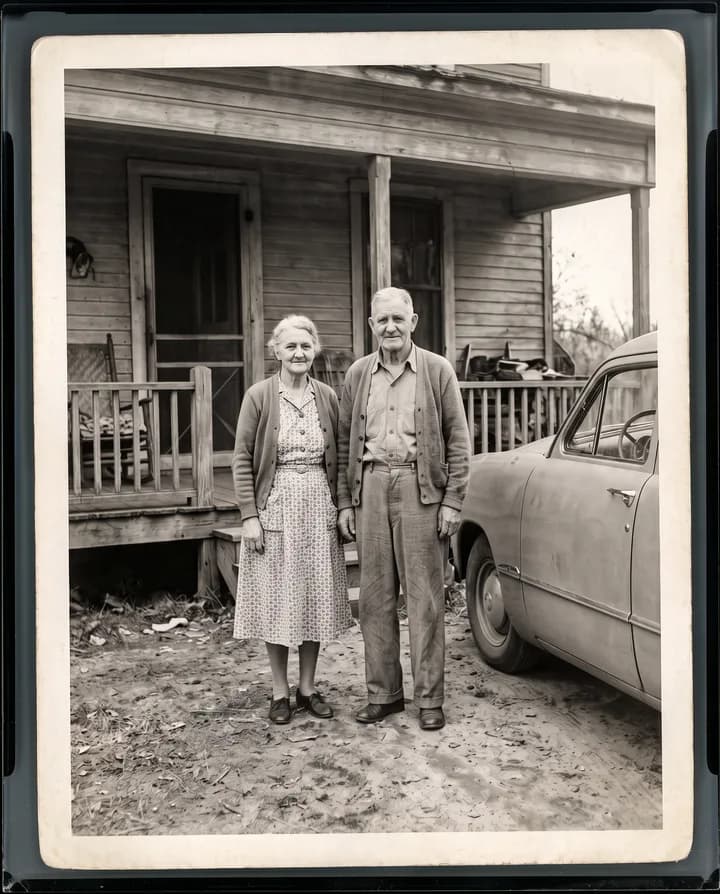
What does AI photo restoration do?
Old prints get damaged in predictable ways. They crease where they were folded, tear at the corners, collect dust and scratches, pick up water stains and brown spots, and fade until the shadows turn gray. AI photo restoration takes a scan of the print and repaints the damaged parts so the photo looks like it did before the damage, without you retouching each mark by hand.
Where the damage covers part of the picture, such as a tear through a sleeve or a crease across a face, the information is gone from the print. The model fills it in from what is around it. That makes the result a careful reconstruction, not a recovered original: small details like the shape of an eye or a pattern on a dress can come out slightly different from the real thing. Keep your scan, compare the two side by side and ask for a retry when something looks off.
In Endless you attach the scan in your workspace chat. The agent repairs it with an image edit model such as Nano Banana Pro, then upscales and sharpens it with the Enhance image model. The repaired photo and the upscaled one are saved as separate assets, and your scan stays as it was. If the photo is black and white, you can colorize it in the same chat afterwards.
How it works
- 01
Pick your scan
Drop the scan in the box above. A flatbed scan at high resolution works best; a phone photo of the print taken straight on, in even light and without glare, also works.
- 02
Sign in and attach it again
Create a free Endless account or sign in. Your workspace chat opens with the prompt already written. The file stays on this page, so attach the scan again in the chat and send.
- 03
Compare and refine
The agent repairs the photo, sharpens it and saves both versions in your workspace assets. Compare them with your scan and ask for another pass, smaller changes or a fix to one area in the same chat.
What people use it for
- 01
Fix creased and torn prints
Photos kept in wallets, letters and drawers often have a fold line across the middle or a missing corner. The model closes the crease and fills the torn area from the picture around it.
- 02
Clean dust, scratches and spots
Remove white specks, hairline scratches and brown foxing that build up on prints and old negatives over decades, while keeping the grain of the original film.
- 03
Bring back faded contrast
Prints that sat in sunlight lose their blacks and turn flat and gray. Ask the agent to restore the contrast so faces and backgrounds separate again.
- 04
Correct color shifts in 1970s and 1980s prints
Color prints from those decades often drift toward orange, magenta or green. Ask for natural colors and the model rebalances them without repainting the scene.
- 05
Repair water and stain damage
Tide marks, coffee rings and patches where the emulsion lifted can be repainted. The larger the damaged area, the more the model has to reconstruct, so check those parts closely.
- 06
Prepare photos for a reprint
After the repair, the Enhance image model enlarges the photo so it is large enough for a framed print, a page in a family album or a slide at an anniversary or memorial.
Frequently asked questions
Can I restore old photos for free?
You can start free. A free Endless account comes with the Free plan, which gives your workspace 100 credits when you create it and 50 credits every week. The repair and the upscale each spend credits from that balance. Paid plans add more credits if you are restoring a whole album.
Will the restored photo look exactly like the original?
Not exactly. Where the print is damaged, the model has to rebuild what was there, and it can only guess from the surrounding picture. Faces can shift slightly, for example the shape of the eyes or the smile. Always keep your scan, compare the faces closely, and ask for a retry that changes less if a person no longer looks like themselves.
How should I scan an old photo?
Lay the print flat, use even light and avoid glare, which the model cannot always tell apart from damage. A flatbed scanner at the highest resolution it offers is best. With a phone, shoot straight down, fill the frame with the print, turn off the flash and take it out of a glossy album sleeve first.
Which model restores photos best?
The agent usually repairs with Nano Banana Pro, which edits an attached image and outputs up to 4K, and then upscales with Enhance image. You can ask for another edit model by name, such as GPT Image 2 or FLUX 3 Image, and compare the results in the same chat. Every model named here is available on the Free plan.
How much does it cost and how long does it take?
The cost depends on the model and settings such as the output resolution, and the agent can tell you before it runs. A repair usually takes from a few seconds to about a minute, and the upscale adds a little more.
Can I colorize the photo after restoring it?
Yes. Once the black-and-white or sepia photo is repaired, ask the agent in the same chat to colorize it, or use the colorize photo tool. Repairing first gives better color, because the model is not coloring scratches and stains.
Are my family photos private?
Scans you attach and the restored versions are saved in your workspace as assets, private by default, and you decide who to share them with. Endless does not post or publish your photos anywhere. Restore photos you own or have the rights to edit.
Related tools
Colorize photo
Add color to a black-and-white or sepia photo, using the real colors you remember.
Open the tool: Colorize photoImage upscaler
Upscale an image 2x, 3x or 4x with AI and sharpen its detail.
Open the tool: Image upscalerAI photo editor
Edit a photo by describing the change: remove an object, change a color, add something or restyle it.
Open the tool: AI photo editor
Give your next idea a place to grow.
Start free, create a project, and bring your brand’s references together. Or book a demo to explore Endless with your team.