Remove objects from photos with AI
Pick a photo, then tell the agent what to erase. After you sign in, attach the photo in your workspace chat, name the object and where it is, and an image model removes it and fills in the space so the rest of the picture stays the same.
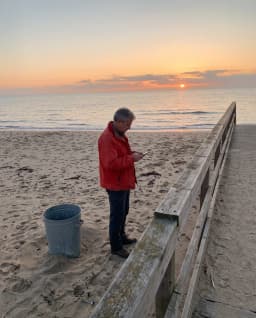
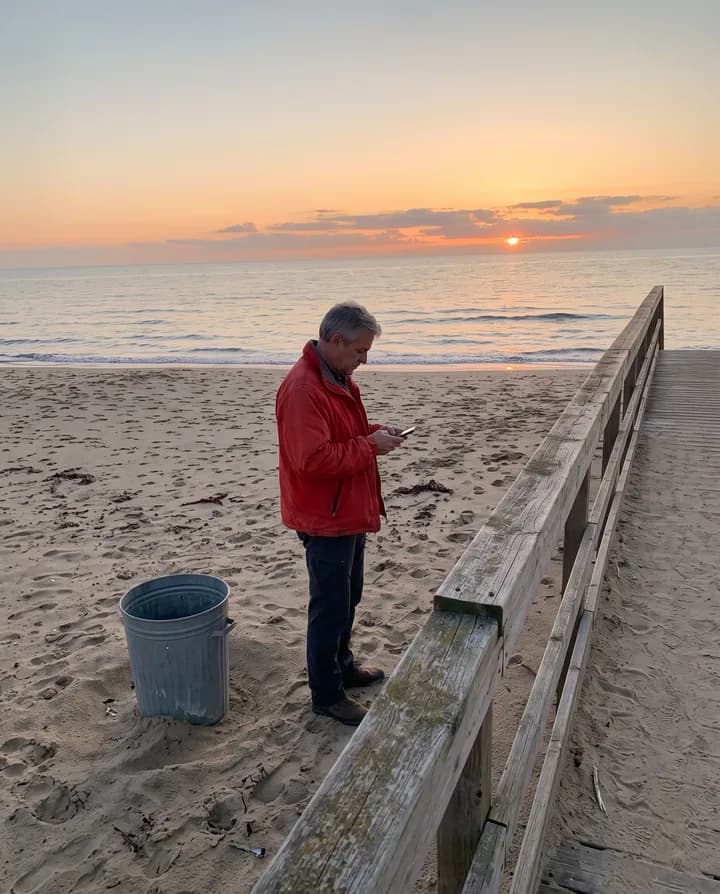
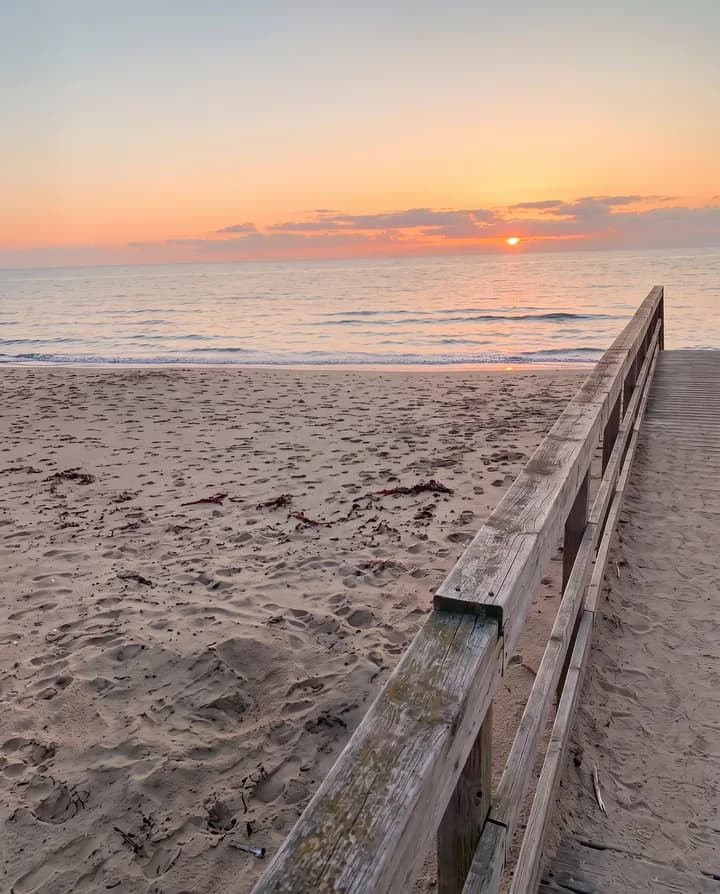
How does AI remove an object from a photo?
Removing an object means taking something out of a photo and filling the space it leaves with what would plausibly be behind it: the wall, the sky, the grass or the table. An image model reads the photo, finds the object you described and paints the area again so it matches the light, texture and perspective around it. You do not have to draw a mask or clone pixels by hand.
The usual targets are small things that distract from the subject of a good shot: a stranger walking through a travel photo, a trash can next to a storefront, a power line across the sky, a cable on a desk, a logo on a shirt or a stain on a tablecloth. Taking them out keeps the photo you already have instead of reshooting it.
Endless runs this from your workspace chat. You attach the photo, say what to remove and where it sits in the frame, and the agent edits it with a model such as Nano Banana, GPT Image, FLUX or Ideogram. The result is saved as a new asset in your workspace, and the photo you attached stays as it was, so you can compare the two.
How it works
- 01
Pick the photo
Drop or choose the photo with the object you want gone in the box above.
- 02
Sign in and attach it again
Create a free Endless account or sign in. Your workspace chat opens with the prompt already written. The file stays on this page, so attach the photo again in the chat before you send.
- 03
Name what to erase
Say what the object is and where it is, for example the man in the red jacket on the left. The agent removes it, fills in the area and saves the edit as a new asset.
What people use it for
- 01
Take out photobombers
Remove a tourist who walked into your shot, a person in the background of a portrait or a crowd at the edge of a landmark photo. Describe who to remove so the people you want to keep stay in the picture.
- 02
Clean up real estate and room photos
Erase a trash can by the door, a car in the driveway, cables behind a TV or clutter on a counter, so a listing shows the space and not the mess.
- 03
Tidy product shots
Remove a price tag, a stand, a fingerprint or a stray object from a product photo before it goes into a store, a catalog or an ad.
- 04
Clear the sky and the street
Take power lines, poles, signs and parked scooters out of travel and architecture photos. The model fills in the sky or the facade behind them.
- 05
Remove logos from clothing
Erase a brand logo or a print from a shirt, a cap or a bag in your own photos, for example when a picture is going into a presentation or a post where the brand should not appear.
- 06
Fix old family photos
Remove a date stamp, a stain or a person's thumb at the edge of a scanned print. You can then ask in the same chat to restore or upscale the photo.
Frequently asked questions
Can I remove objects from a photo for free?
You can start free. A free Endless account comes with the Free plan, which gives your workspace 100 credits when you create it and 50 credits every week. Each removal spends credits from that balance. Paid plans add more credits if you edit photos often.
Do I need an account?
Yes. This page only writes the request for you. The edit runs after you create a free account or sign in, in the chat of your workspace, where the result is saved.
How much does it cost?
Each edit spends credits, and the cost depends on the image model and settings such as the output resolution. Ask the agent before it runs and it tells you the cost, so you know what it will spend from your workspace balance.
How do I get the cleanest result?
Name the object and where it is in the frame, like the blue trash can to the right of the door. Remove one or two objects at a time instead of a long list, and say what must stay the same. If an edge or a shadow is left behind, ask for a second pass on that spot in the same chat.
Will the rest of my photo change?
The agent asks the model to change only the area you named. Image models paint the picture again, so small differences can appear in other places, such as texture or color. Compare the result with the original, which stays untouched in your workspace.
Which photos can I edit?
Common image files such as JPG, PNG and WebP work. The result is saved as a raster image in your workspace assets. Edit photos you own or have the rights to edit, and only remove or change people in photos when they agreed to it or the photo is yours.
Are my photos private?
Photos you attach and the edits made from them are saved in your workspace as assets, private by default, and you decide who to share them with. Endless does not post or publish your photos anywhere.
Related tools
Remove text from image
Take captions, dates, labels and sign text off an image, or replace them with new text.
Open the tool: Remove text from imageAI photo editor
Edit a photo by describing the change: remove an object, change a color, add something or restyle it.
Open the tool: AI photo editorRemove background
Cut the subject out of a photo onto a transparent background, saved as a PNG.
Open the tool: Remove background
Give your next idea a place to grow.
Start free, create a project, and bring your brand’s references together. Or book a demo to explore Endless with your team.